If you’ve ever struggled to read fine text on your Samsung phone’s screen during a late-night work session, or wished your tablet’s display could fit more spreadsheet columns for a remote meeting, you’ve probably wondered: Can I change the screen resolution on a Samsung device? As a supplier of Samsung original equipment manufacturer (OEM) and replacement screens, I field this question multiple times a week—from casual users frustrated by blurry streaming, small business owners customizing devices for their teams, and even repair technicians looking to advise customers on practical adjustments. Let’s break down how this works, what’s possible, and why understanding resolution settings matters for anyone relying on Samsung screens, whether for daily use or professional repair. Screen for Samsung
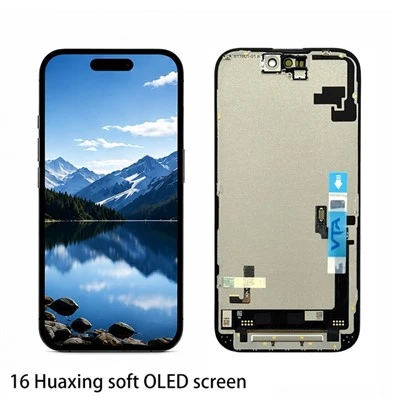
First, it’s important to clarify what screen resolution actually means. Resolution is the number of pixels (tiny colored dots) that make up a display, measured as width x height (for example, 1080 x 2340 for most mid-range Samsung phones, or 2800 x 1800 for Galaxy Tab S8 tablets). More pixels generally mean sharper text, crisper photos, and more on-screen content. But resolution isn’t one-size-fits-all—Samsung designs its devices with multiple resolution options to balance performance, battery life, and display clarity, which is why changing it is often possible, though the process varies by device model.
For most modern Samsung Galaxy phones and tablets released in the last five years, the answer is yes, you can adjust screen resolution directly in the device’s settings. I’ve walked dozens of customers through this step-by-step, and it’s surprisingly straightforward. Here’s how it works: Open your device’s Settings app, tap Display, then Screen resolution. You’ll usually see two or three preset options, such as FHD+ (1080 x 2340), WQHD+ (1440 x 3200), and sometimes an adaptive option that adjusts resolution automatically based on what you’re doing. Choosing WQHD+ gives you sharper visuals ideal for gaming or watching high-definition movies, while FHD+ saves battery and uses less processing power for everyday tasks like messaging or browsing. Adaptive is a good middle ground—your phone will crank up resolution for high-detail content and scale it down for simpler apps, so it’s great if you don’t want to manually adjust constantly.
But wait—there are key limitations here that aren’t always obvious, especially for users with older Samsung devices or those who’ve purchased unmodified screens. For one, not all Samsung models let you change resolution. Budget phones like the Galaxy A03 or A14, for example, only support a fixed FHD+ resolution with no adjustable options, since their hardware is designed for basic use. Flagship phones from a few years back, like the Galaxy S9, also don’t have a built-in resolution toggle because they launched before Samsung added that feature. For these, you can’t change resolution via settings.
Another big point, especially for those who replace their own screens: changing resolution works only if your device’s screen is compatible with the resolution setting. That’s where my role as a Samsung screen supplier comes in. I’ve seen it too many times—someone buys a cheap off-brand replacement screen online, tries to adjust resolution in settings, and it doesn’t work. Why? Many third-party screens don’t support the full range of resolution settings that Samsung’s original OEM screens do. OEM screens are manufactured specifically for each Samsung model, with precise hardware calibration that lets the device’s software adjust resolution seamlessly. Off-brand screens often use generic components that lock resolution to a single setting, regardless of what you choose in the menu. That’s why if you’re replacing a screen and want to keep the option to adjust resolution, you need a screen that’s engineered for your exact Samsung model—not a generic alternative.
I also get questions about rooting or installing custom ROMs to unlock more resolution options. Some advanced users do this, but I generally advise against it for most people. Rooting voids your device’s warranty, can cause stability issues (like apps crashing or the screen freezing), and might even damage your device’s software. For users who just want to tweak resolution to improve their experience, the built-in settings are more than sufficient, and rooting adds unnecessary risk. For power users with specific needs (like developers testing display settings), it’s an option, but it’s not recommended for casual use.
Let’s talk about when you might want to change resolution, not just if you can. For example, if you’re a small business owner who uses Samsung tablets for point-of-sale systems, lowering resolution to FHD+ can make the device’s battery last twice as long during a 12-hour shift, without losing the clarity needed for customer-facing screens. For content creators who use their Samsung phone to edit photos, bumping resolution to WQHD+ makes small details in images easier to see, so you can make more precise edits. Even for students, adjusting resolution can help reduce eye strain—lower resolution reduces the number of small pixels your eyes have to focus on, which is helpful after hours of studying.
I should also clear up a common misconception: changing resolution doesn’t make your screen inherently sharper if it’s a lower-quality display. If you have a generic replacement screen, cranking it to WQHD+ won’t give you the same sharpness as an OEM screen. OEM screens are calibrated to work with Samsung’s display software, so when you choose a higher resolution, the device can render pixels evenly, avoid blurriness, and maintain consistent color accuracy. Third-party screens often have uneven pixel density or poor color calibration, so even if the software says you’re on WQHD+, the image will look fuzzy compared to an original Samsung screen. That’s why when I work with repair technicians and business clients, I emphasize that using a genuine Samsung screen is key to getting the most out of resolution adjustments.
What about tablets? The process is similar but has a few extra options. Galaxy Tab S series tablets usually let you choose between FHD+, WQXGA (2560 x 1600), and adaptive. For tablets used for work, WQXGA is ideal because it lets you fit more on-screen content—like two spreadsheet side-by-side or a document and a video at the same time. For kids’ tablets or basic browsing, FHD+ saves battery and is easier for young eyes. Again, the screen type matters here: if you have a non-OEM screen, you might not see all the resolution options, so you’ll be stuck with a fixed setting that doesn’t fit your needs.
I’ve had a client recently who bought a cheap replacement screen for their Galaxy S21, and they couldn’t adjust resolution to WQHD+ like they could with the original. The cheap screen had a lower maximum pixel limit, so when they tried to switch, the device automatically reverted back to FHD+. They ended up contacting me to buy an OEM S21 screen, and once they installed it, the resolution toggle worked exactly as it was supposed to—giving them the sharpness they needed for their design work. That’s a perfect example of why the screen’s origin matters for resolution functionality.
Now, let’s walk through common troubleshooting tips if you try to change resolution and it doesn’t work. First, check your device model to confirm it has an adjustable resolution setting. Go to Settings > About phone (or About tablet) to find your model number, then look it up on Samsung’s official website to see its display specs. If your model does have the setting, restart your device—sometimes a simple reboot fixes minor software glitches that prevent the resolution toggle from working. If that doesn’t help, check for software updates: Samsung often releases updates that fix display issues and add or improve resolution settings. If you’ve replaced your screen recently, make sure the screen is compatible with your model—if you used a third-party screen, that’s likely the root cause, and swapping to an OEM screen will resolve the issue.
For anyone who relies on Samsung devices for business—like restaurants using tablets for orders, retail stores using phones for inventory, or construction teams using tablets for blueprints—resolution settings can directly impact productivity. A device that lets you switch to a higher resolution for detailed blueprints and lower it to save battery during long shifts is a huge asset. But if your screen doesn’t support that, you’re stuck either carrying a charger everywhere or struggling to see fine details. That’s why for business clients, I recommend using genuine Samsung screens, even for replacement units, to ensure all device features work as intended.
Another point: resolution vs. refresh rate. A lot of users mix these up, but they’re different. Resolution is the number of pixels, while refresh rate is how many times the screen updates per second (measured in Hz). You can adjust both, and they work together to impact display quality. For example, if you set your resolution to WQHD+ and refresh rate to 120Hz, you get a sharp, smooth display perfect for gaming. But if you’re low on battery, switching resolution to FHD+ and refresh rate to 60Hz will save power without making the display unusable. It’s a balancing act, and Samsung’s adaptive settings do a good job of this, but only if the screen can handle both settings.
So, to circle back to the original question: Can I change the screen resolution on a Samsung device? The short answer is: For most modern Samsung Galaxy phones and tablets, yes—if your model supports adjustable resolution and you have a compatible screen. For older models or those with third-party screens, it may not be possible. But regardless of your device or needs, using a genuine Samsung screen is the best way to ensure you have access to all the features, including resolution adjustment, that your device was designed to offer.
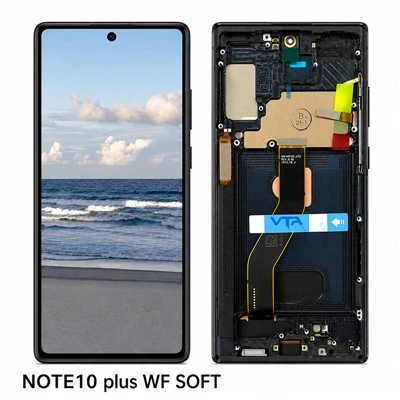
If you’re a repair technician needing replacement screens that work seamlessly with Samsung’s software and resolution settings, or a business owner looking to optimize your team’s devices, we offer a range of OEM and compatible Samsung screens designed to support all display features. Contact our team today to discuss your specific needs and find the right screen solution for your Samsung device.
Screen for Iphone References
Samsung Display Specifications. Samsung Electronics Co., Ltd.
Android Screen Resolution Adjustment Guide. Google Inc.
Mobile Display Calibration Standards for OEM Components. International Display Manufacturing Association.
Shenzhen Longze Crossborder Ecommerce Development Co., Ltd.
Shenzhen Longze Crossborder Ecommerce Development Co., Ltd. is one of the most professional screen for samsung manufacturers and suppliers in China, featured by quality products and good price. Please rest assured to wholesale bulk durable screen for samsung made in China here from our factory.
Address: 302, Building B, Shengyang Technology Park, No. 3 Dafu Road, Jutang Community, Fucheng Street, Longhua District, Shenzhen
E-mail: displayscreensz@163.com
WebSite: https://www.lzphonedisplay.com/
